1 min read

New feature: Create XHTML File

New feature: Create XHTML File

Design Assurance: Introducing Document Conversion Testing

We have streamlined the process for testing the visual conversion of reports, making it more accessible and efficient than ever before. We have eliminated many of the previous steps. Instead, we've integrated a user-friendly function into the CtrlPrint platform, allowing you to export a test version in XHTML directly from the project- and chapter page.

Why should you use this feature?

Following our best practices, it is of utmost importance to ensure the flawless visual conversion of your documents. What's even more advantageous is the ability to do so early in the production cycle. By doing this, you can significantly reduce potential stress during critical reporting periods.

What can you expect to achieve?

By engaging in the test conversion, you'll have the opportunity to assess the visual accuracy of your report in its ESEF version. Should any discrepancies arise, you'll be alerted to anomalies – whether it's specific characters appearing different from the rest or misaligned tables. For a more in-depth exploration of this, you can read more here in our ESEF best practices guide.

How does the process unfold?

  • Create a test project in CtrlPrint and make sure to include Test in the name of the project to avoid any confusion.
  • Upload a chapter of the report. Make sure to have both text and tables in the chapter for a more comprehensive check.
  • Log in as an administrator and activate ESEF Reporting. Make sure you enter the correct settings.
  • Click on the context menu of the chapter you wish to test and select the option "Create XHTML File". This will begin the export of the XHTML version of the chapter.
  • Click on the bell icon in the top right hand corner of CtrlPrint and then Download. Once the file is downloaded, you can then open the downloaded file in a web browser to see the results of the conversion from PDF to XHTML.

Embrace this innovative testing feature to seamlessly evaluate your report's visual conversion. By following these simple steps, you'll be well-equipped to ensure the precision and consistency of your design across formats.

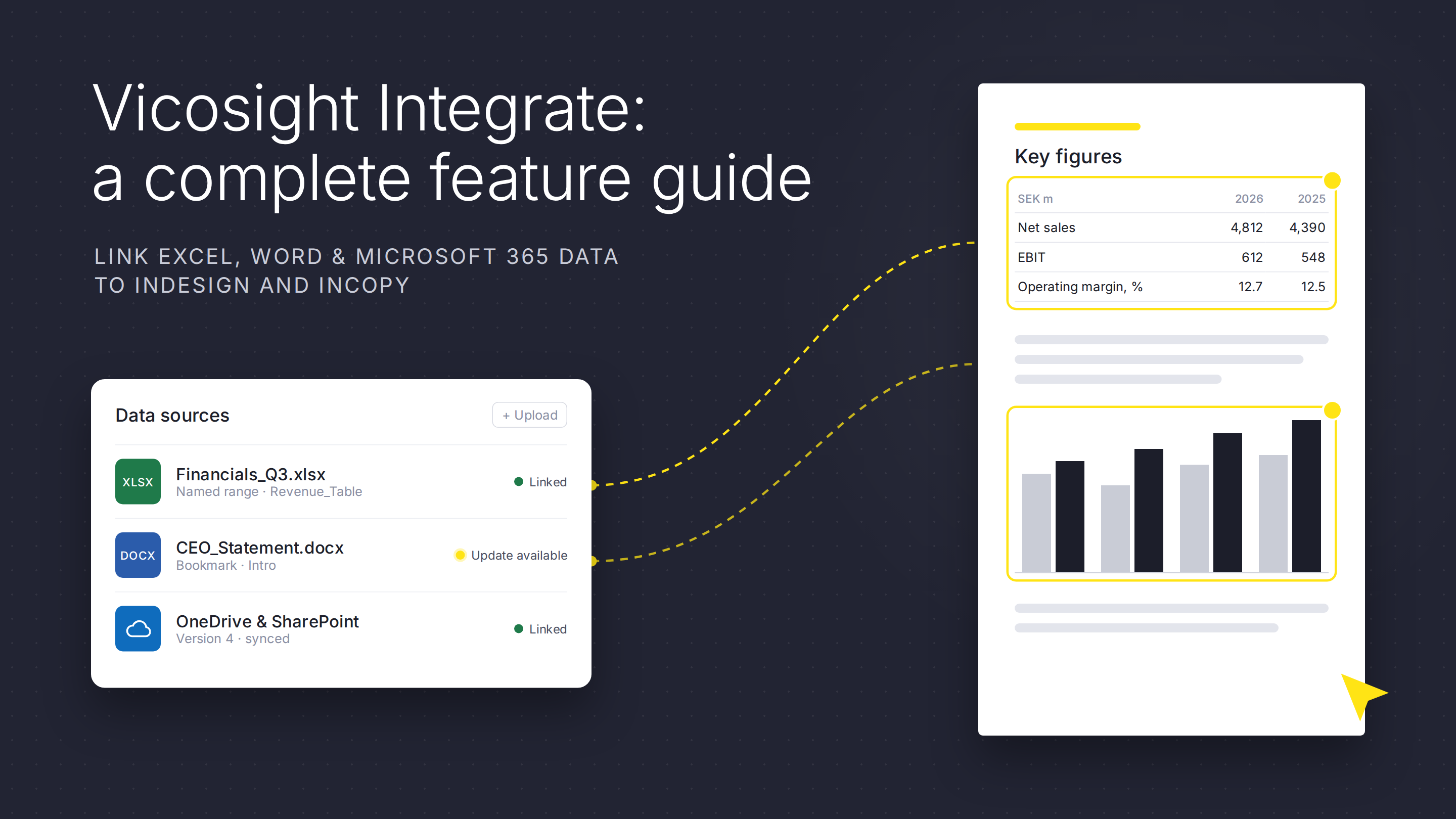
Vicosight Integrate: a complete feature guide

Vicosight Integrate: a complete feature guide

Vicosight Integrate is a data connectivity feature that enables you to link data sources directly to your InDesign and InCopy documents, reducing...
Read More
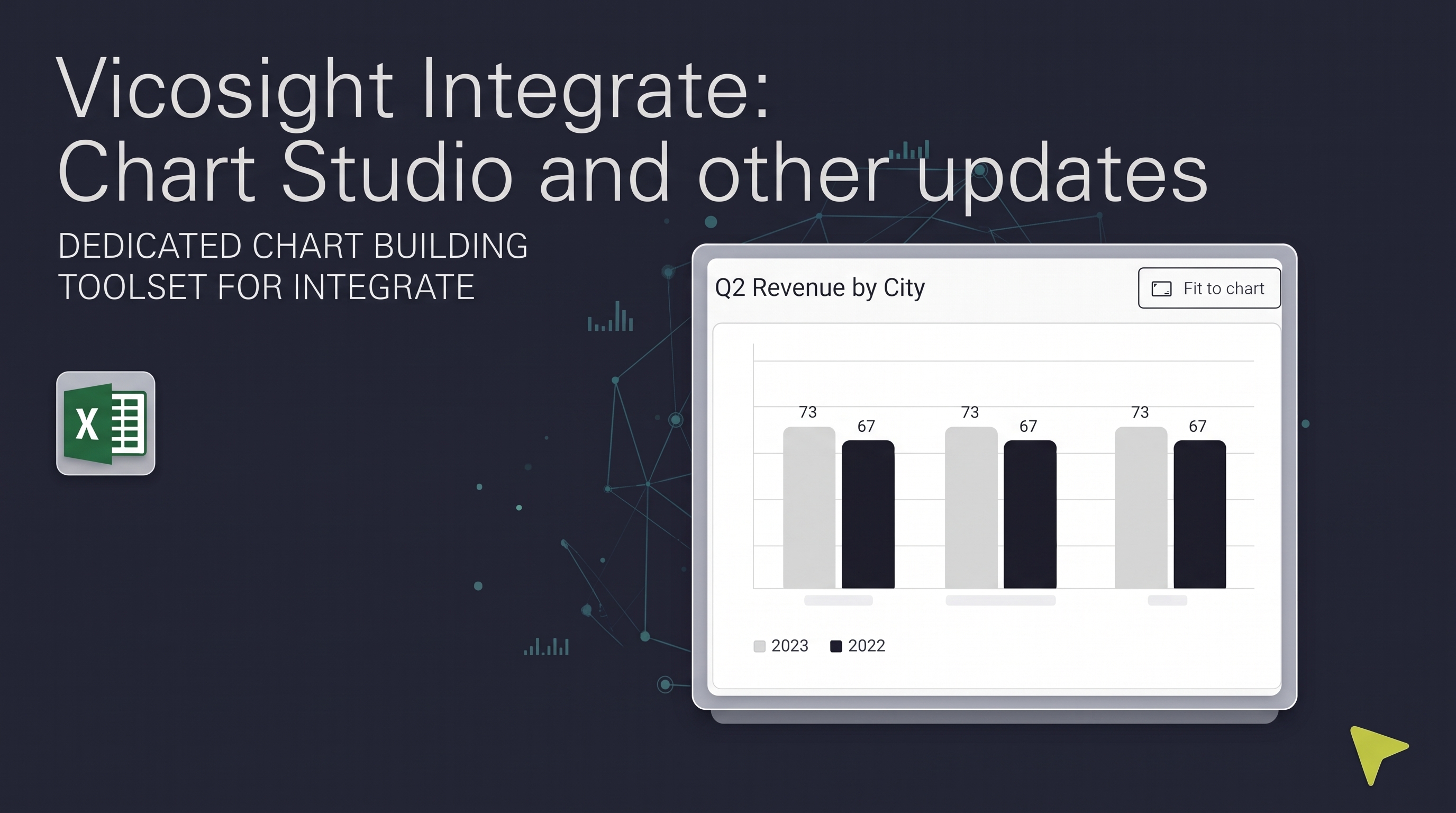
Vicosight Integrate: Chart Studio and other updates

Vicosight Integrate: Chart Studio and other updates

Over the past several months, Vicosight Integrate has received a series of updates introducing new capabilities and improvements to data handling,...

Read More
Crafting Vicosight new brand identity: evolving a 25-year legacy in corporate reporting

Crafting Vicosight new brand identity: evolving a 25-year legacy in corporate reporting

CtrlPrint has officially transformed into Vicosight, evolving from a trusted production tool into a modern digital ecosystem. Transitioning a 25-year...

Read More
UKSEF and provision 29: preparing for the 2026 reporting shift

UKSEF and provision 29: preparing for the 2026 reporting shift

The 2026 reporting season brings a convergence of UKSEF digital mandates and Provision 29 declarations. Discover how to professionalise your workflow...

Read More
Your Learning, Your Way: Step Inside Our New Learning Hub!

Your Learning, Your Way: Step Inside Our New Learning Hub!

Customise Your Learning Experience One of the key benefits of our Learning Hub is the ability to watch shorter tutorials at your convenience. No more...

Read More
Vicosight Integrate: Chart Studio and other updates

Vicosight Integrate: Chart Studio and other updates

Discover the latest updates to Vicosight Integrate, including the new Chart Studio, improved Microsoft 365 connectivity, and enhanced data import...

Read More