Vicosight Integrate: a complete feature guide
Vicosight Integrate is a data connectivity feature that enables you to link data sources directly to your InDesign and InCopy documents, reducing...
3 min read
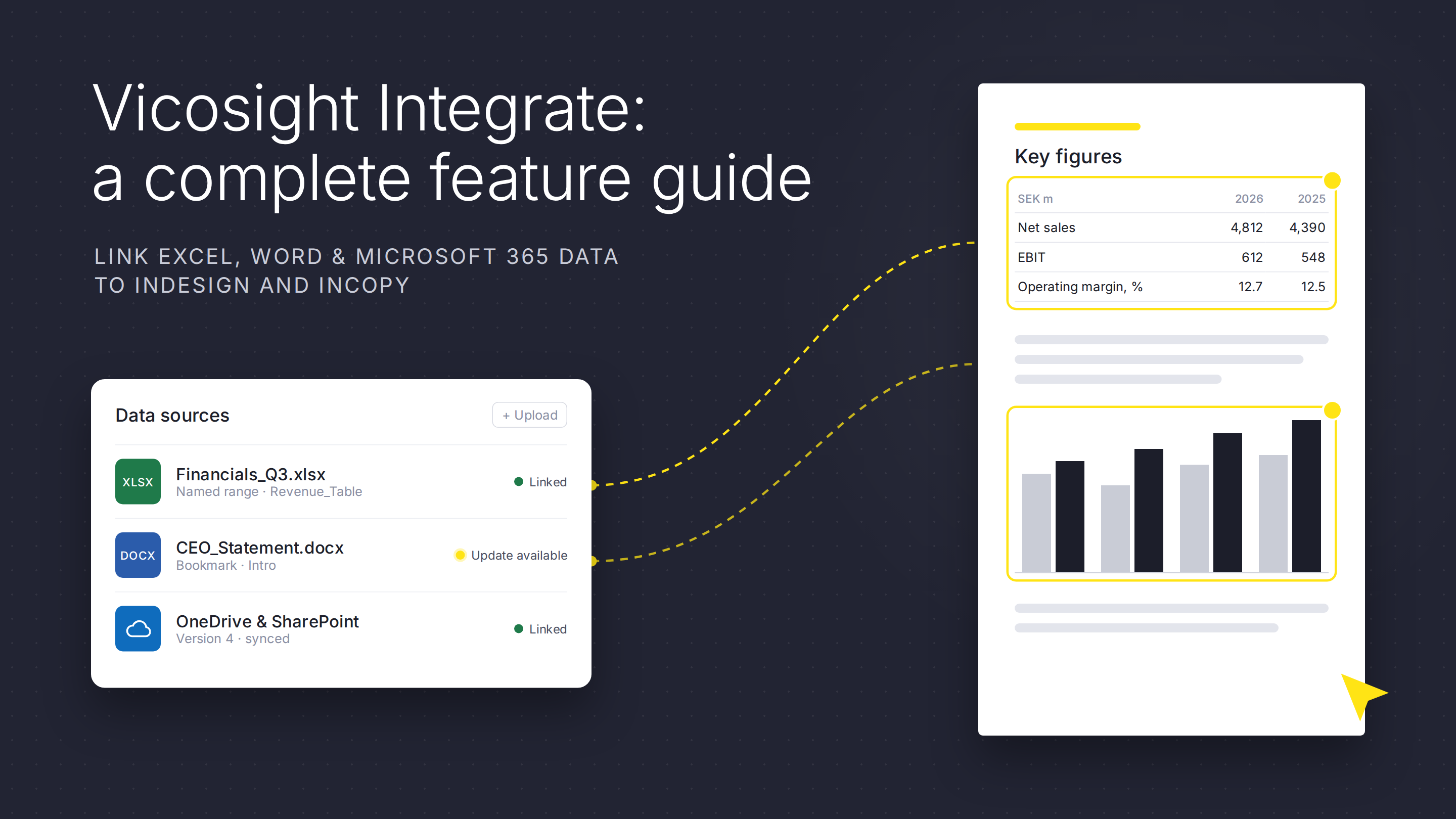
Vicosight Integrate is a data connectivity feature that enables you to link data sources directly to your InDesign and InCopy documents, reducing manual data entry and maintaining synchronised updates across your projects. It supports multiple file types and cloud services, and provides project-level controls for formatting consistency.
Integrate supports the following data source types:
Excel files (.xlsx and .xlsm formats) with defined named ranges. You create named ranges within Excel, then reference them in Integrate to pull specific tables or text values into your documents.
Word documents (.docx) using bookmarked ranges. You can define bookmarks for specific sections or import the entire document. When you update the Word file, linked content in your documents can be refreshed.
Microsoft 365 cloud storage (OneDrive and SharePoint). You can upload files directly to Integrate, and the system tracks when new versions are available in your cloud storage. Updates use OAuth authentication for secure access.
.gif?width=1200&height=630&name=Integrate%20workflow%20(3).gif)
Integrate includes project-level settings that control how data is formatted and imported across all documents in a project.
Numeric formatting can be set globally for the project, including:
Date and time formatting is controlled by project locale selection, which determines how dates appear in all documents. This supports multi-language environments with appropriate translations for month and day names.
Data import options include:
These project-level settings apply consistently across all team members and documents in that project.
Integrate allows you to work with both new and existing content in your documents.
Insert data from Integrate sources into your documents in multiple ways:
Link existing tables to Excel data sources. Tables already present in your InDesign or InCopy documents can be linked to Integrate data, which is useful when adopting Integrate into existing workflows or working with established design templates.
Update linked content in multiple ways:
Chart creation is available through Chart Studio, where you can build custom charts linked to Excel data sources. Charts are inserted directly into your InDesign documents, retaining a live link to the data source so they can be updated when the underlying data changes. The Chart Manager provides a central location to organize and manage your charts. Charts can also be downloaded as editable SVG files.
Visual indicators display in your documents to identify which content is linked to Integrate data sources .
Alerts notify users when they are about to edit or delete content that is linked to an Integrate data source, helping to prevent accidental changes to connected content.
.gif?width=1200&height=1200&name=Vicosight%20Sync%20data%20%26%20design%20(integrate).gif)
Integrate provides tools for managing data sources, versions, and updates.
Version history tracks uploaded versions of your data sources, including the original filename. You can download previous versions or promote an older version to be the current one.
Broken link detection flags when a data source update causes existing links to break (such as when a named range is renamed or deleted).
Update notifications indicate when new versions of a data source are available. The system only flags updates that include changes to named ranges you currently use in your documents.
Integrate includes features to maintain data accuracy and formatting consistency.
Formatting preservation maintains formatting when updating content. Bullet points, numbered lists, and custom formatting from Word documents are preserved on update. Leading zeros in Excel cells are retained as defined.
Word-specific features include:
Data handling includes:
Integrate includes role-based permissions that control what each user can do with a data source. Permissions are set at the data source level and apply to project users individually.
There are four roles: Administrator, Owner, Editor, and Viewer.
Any project user can upload a new data source without needing a special role. Once uploaded, the uploader becomes the Owner of that data source and can share it with others by assigning Editor or Viewer permissions.
Owners and Administrators can modify permissions, remove access, or transfer ownership at any time via the Manage Permissions panel.
Do you want to learn more about Integrate? Please contact our team to book a demo.
Vicosight Integrate is a data connectivity feature that enables you to link data sources directly to your InDesign and InCopy documents, reducing...
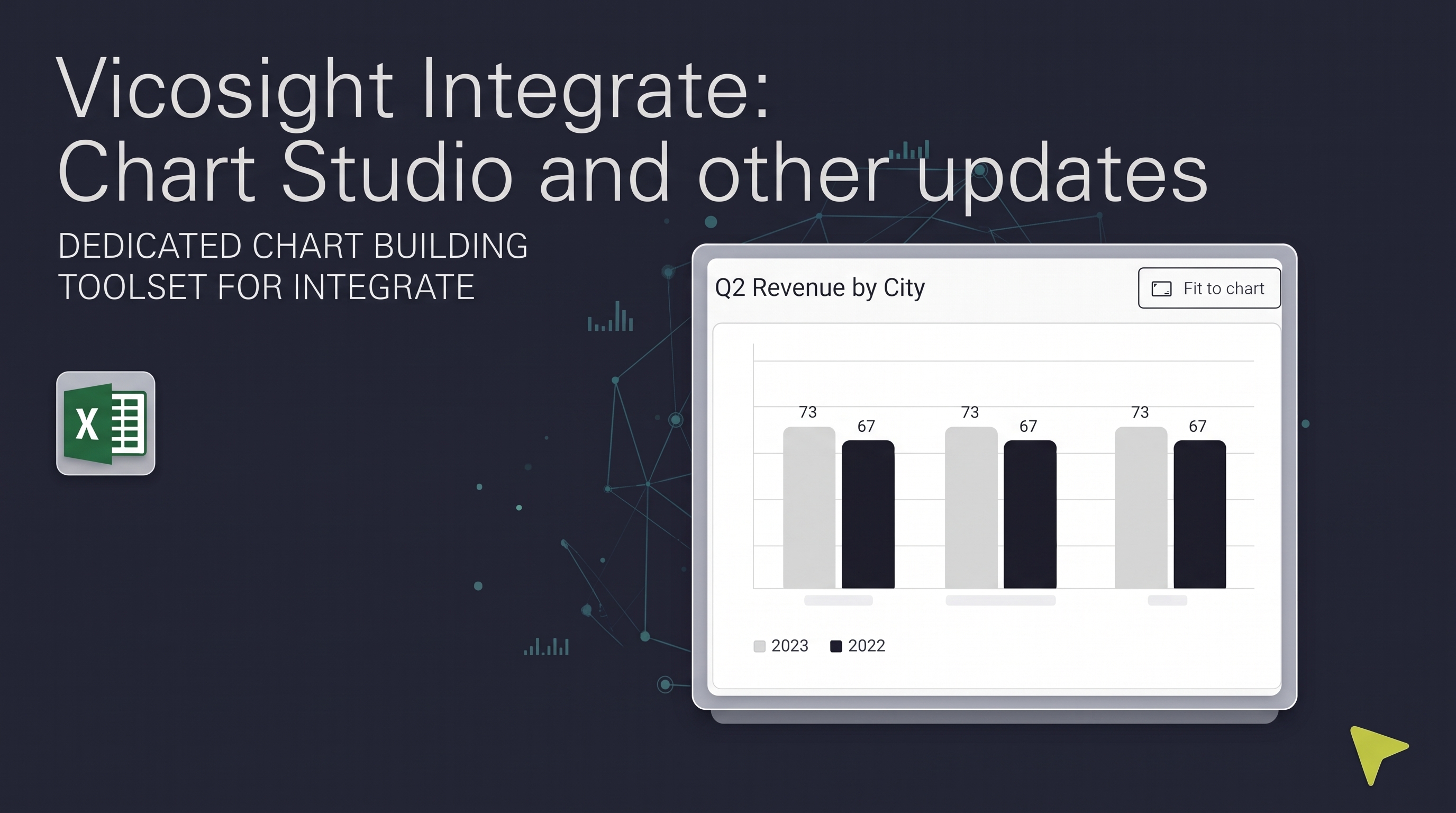
Over the past several months, Vicosight Integrate has received a series of updates introducing new capabilities and improvements to data handling,...

CtrlPrint has officially transformed into Vicosight, evolving from a trusted production tool into a modern digital ecosystem. Transitioning a 25-year...